


Image search techniques are no longer just about typing keywords into Google. Today, advanced tools like Google Lens, reverse image search engines, and visual AI systems allow you to find, verify, and track images in seconds.
Most people still use only one basic method, which means they miss faster, more accurate, and more powerful ways to search.
In this guide, you will learn 10 practical image search techniques that help you find images, identify objects, track image sources, and even compare products online with much higher accuracy.
These image search techniques are used by bloggers, designers, researchers, journalists, and online shoppers to save time, verify content, and find accurate visual results across the web.
What Is Image Search? (Simple Explanation)
Image search is a method that allows you to find information, websites, or similar visuals using an image instead of text.
Instead of describing something in words, you can simply upload or use a photo, and the search engine will find matching or similar images across the internet.
Image search can also be done using keywords, colors, patterns, or your phone camera. Each method works differently and is useful depending on what you are trying to find.
In this guide, you will learn 10 practical image search techniques explained in simple, easy-to-follow language.
How Does Image Search Work?
Before we jump into the techniques, here’s a quick, easy explanation of what happens behind the scenes.
When you upload an image or type a keyword, the search engine breaks your image into tiny parts, colors, shapes, edges, and textures. It then compares those tiny parts to billions of other images it has stored. When it finds a good match, it shows you the result.
Modern search engines like Google Lens use AI to understand what is actually inside the image, not just match pixels. That’s why Google can look at a photo of a flower and tell you its exact species.
Now let’s get into the 10 techniques.
The 10 Image Search Techniques
Below are the 10 most effective image search techniques, organized from basic to advanced, so you can quickly find the method that fits your need.
Technique 1: Keyword-Based Image Search
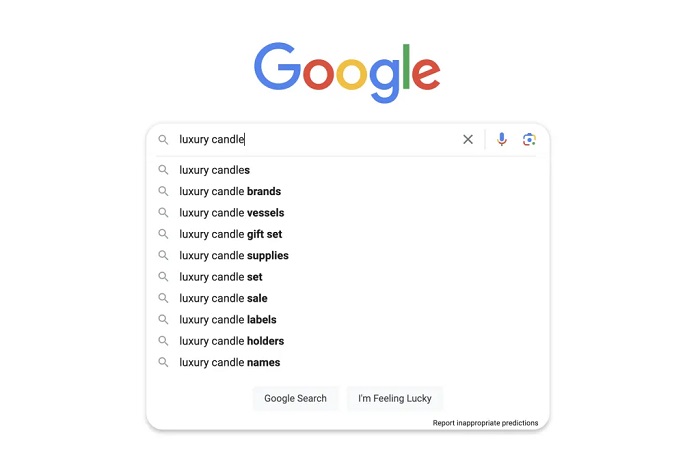
What it is: The most basic technique. You type words into a search engine and get images back.
How to do it:
- Go to Google Images or Bing Images
- Type what you’re looking for, be specific
- Use the filter buttons to narrow by size, color, or type
Example: Instead of typing “dog”, try typing “golden retriever puppy sitting on grass outdoors” you’ll get much better results.
Pro Tips most people skip:
- Add words like “transparent background” or “high resolution” to refine results
- Use Google’s Tools button to filter by image size, color, or usage rights
- Add “site:pinterest.com” before your query if you want creative inspiration images
- Use quotes around exact phrases: “red leather jacket” gets better results than red leather jacket
Best for: Finding general photos, stock images, icons, and inspiration.
Content gap competitors miss: You can filter Google Images by usage rights, meaning you can find images that are free to use without a license. Go to Tools >> Usage Rights >> Creative Commons Licenses. This is a huge tip for bloggers and content creators.
Technique 2: Reverse Image Search
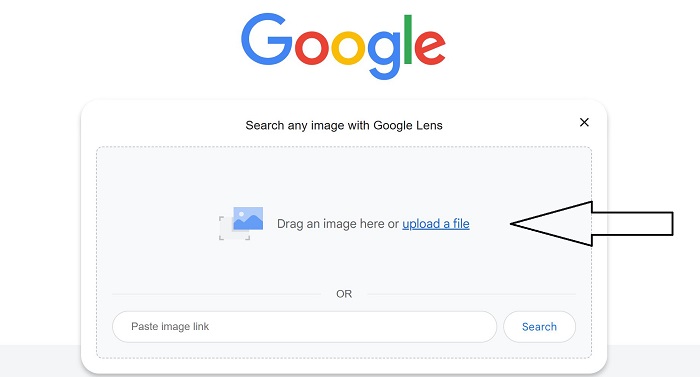
What it is: You upload a photo and the search engine finds where that exact image (or similar ones) appears online.
How to do it on desktop:
- Go to Google Images
- Click the camera icon in the search bar
- Upload your image OR paste an image URL
- Google shows you all the places that image appears
How to do it on mobile (this is what most guides skip):
- Open Chrome on your phone
- Hold your finger on any image on a webpage
- Tap “Search image with Google”
OR use Google Lens (see Technique 4 below).
Real-world use cases:
- You found a photo online and want to know if it’s real or fake
- You want to find a higher-quality version of a blurry image
- You’re a photographer checking if someone stole your photo
- You see a product in a photo and want to find where to buy it
Tools to use:
| Tool | Best For |
| Google Images | General reverse search, most web coverage |
| TinEye | Finding exact duplicates, checking image history |
| Yandex Images | Excellent for people and faces (better than Google for this) |
| Bing Visual Search | Good for product identification |
Pro Tip: Yandex is surprisingly powerful for finding where a person’s photo appears online, often better than Google. Many journalists use Yandex to fact-check profile photos.
Technique 3: Visual Similarity Search
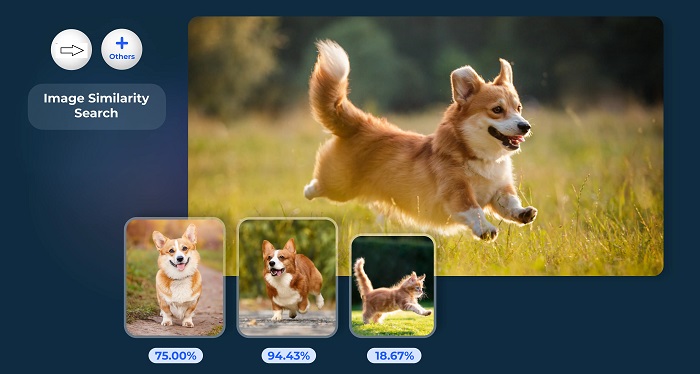
What it is: Instead of finding the exact same image, this finds images that look similar in style, color, mood, or composition.
How to do it:
- Do a regular reverse image search on Google
- Scroll down to the section that says “Related Images” or “Visually Similar Images”
- Or use Pinterest’s Lens feature for style-based similarity
Where this is different from reverse search: Reverse search looks for the exact same image. Visual similarity search looks for images that feel the same, same colors, same type of object, same mood.
Example: You have a photo of a modern living room and you want decorating ideas in the same style. Visual similarity search finds hundreds of rooms with the same aesthetic.
Best for:
- Interior design and home decorating
- Fashion, find similar outfits or clothing styles
- Graphic designers looking for visual inspiration
- Online shopping, find cheaper versions of an expensive product
Pro Tip: Pinterest’s visual search is the best tool for style-based searching. Tap the camera icon inside the Pinterest app, then tap on any part of a Pin to search for visually similar items.
Technique 4: Google Lens (Camera-Based Search)
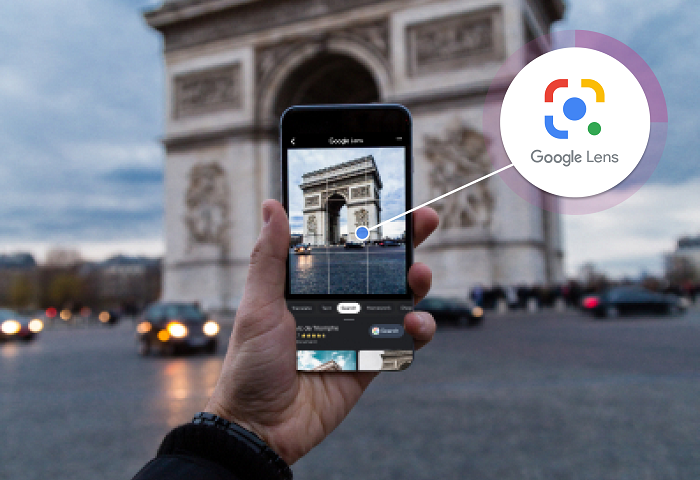
What it is: You point your phone camera at something in real life and Google tells you what it is.
This is the most powerful and the most underused technique on this list.
How to do it:
- Open Google app on your phone
- Tap the Lens icon (looks like a camera)
- Point your camera at anything, a plant, a product, a sign, text on paper, food, shoes, anything
- Google instantly identifies it and gives you information or shopping links
What Google Lens can do (most people only use 20% of this):
- Identify plants and animals from a photo
- Translate text in a foreign language, just point and it translates in real time
- Find a product and compare prices across stores
- Identify a piece of artwork or landmark
- Scan a QR code or barcode
- Solve a math problem from a photo of your textbook
- Search for a restaurant by pointing at its sign
Real example: You’re at a restaurant and there’s a painting on the wall you like. Point Google Lens at it and it tells you the artist, the painting’s name, and where you can buy a print.
Pro Tip: In Google Photos, you can tap any photo you already have and tap the Lens icon to search from existing saved images.
Technique 5: Color and Pattern-Based Search
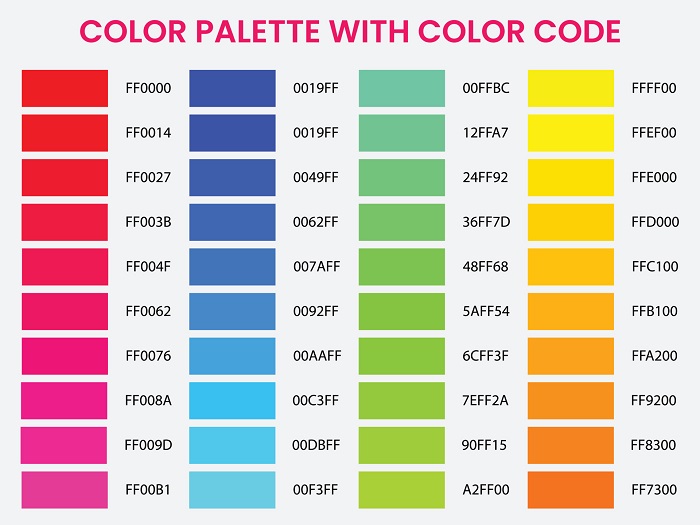
What it is: You search for images based on a specific color or visual pattern, not by describing an object.
How to do it:
- Go to Google Images
- Search for anything (example: “bedroom design”)
- Click Tools >> Color > Pick your color
- Now all results will feature that specific color prominently
Why this matters:
- Designers use it to find images that match a brand’s color palette
- Social media managers use it to find on-brand stock images
- Marketers use it to find competitors’ visual content in certain colors
Pro Tip: Dribbble and Behance (design platforms) have built-in color search. You can literally search by hex code, type in #FF6B35 and find designs using that exact orange.
For Shopify and eCommerce sellers: If you sell colored products, this is how customers are finding you (or not finding you). Make sure your product images have accurate color names in their alt text.
Technique 6: Facial and Object Recognition Search

What it is: The search engine identifies specific faces or objects within a photo and uses that information to find related results.
How to do it:
- For faces: Use Yandex Images (upload a photo of a person’s face and it finds other photos of the same person)
- For objects: Use Google Lens, tap on a specific object inside a photo
- For products: Use Amazon’s “Search by Photo” feature in their app
Important note about face search: Always use face recognition tools ethically and legally. Many countries have privacy laws around this. Never use it to track someone without their permission.
Legitimate uses:
- Journalists verifying if a profile photo is real
- HR professionals checking if a resume photo matches a LinkedIn profile
- Brand managers checking if celebrity photos are being used without permission
- Parents using safe, vetted tools to protect their children’s images online
Object recognition use cases:
- See a car in a movie and want to know the model? Screenshot it and search with Google Lens
- Find a specific piece of furniture you saw in a photo
- Identify a piece of electronics to find its exact model and specs
Technique 7: Reverse Image Search for Shopping (Visual Product Search)
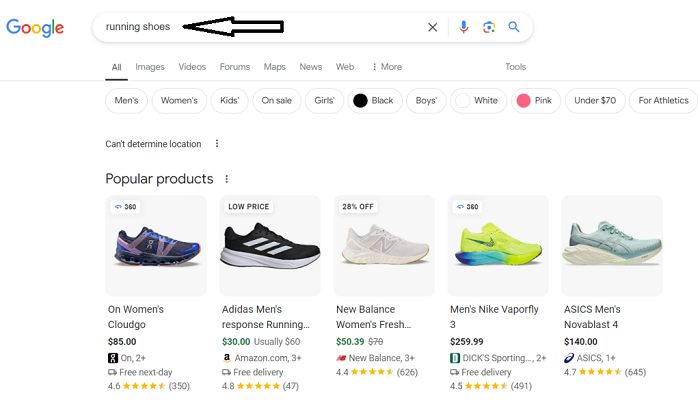
What it is: You take a photo of a product, or upload one, and find where to buy it online, plus compare prices.
This is one of the most useful but least-known techniques for everyday shoppers.
How to do it:
- Take a photo of something you want to buy (clothing, furniture, shoes, electronics)
- Upload it to Google Lens, Bing Visual Search, or Pinterest
- The engine finds the exact product or visually similar products with price comparisons
The best tools for shopping search:
| Tool | Strength |
| Google Lens | Broadest product database, links to Google Shopping |
| Best for fashion, home decor | |
| Bing Visual Search | Good product identification, shows prices |
| Amazon App (camera icon) | Best for finding products on Amazon specifically |
| IKEA App | Identifies IKEA products from photos |
Pro Tip for bargain hunters: Take a photo of an expensive product in a store. Upload it to Google Lens. Google will find the same or very similar products from other sellers, often at much lower prices.
Pro Tip for fashion: Spotted an outfit on Instagram but the account doesn’t tag the brand? Screenshot the outfit, crop just the clothing item, and upload it to Pinterest Lens or Google Lens. It will often identify the brand and link you to buy it.
Technique 8: Advanced Google Image Search Operators
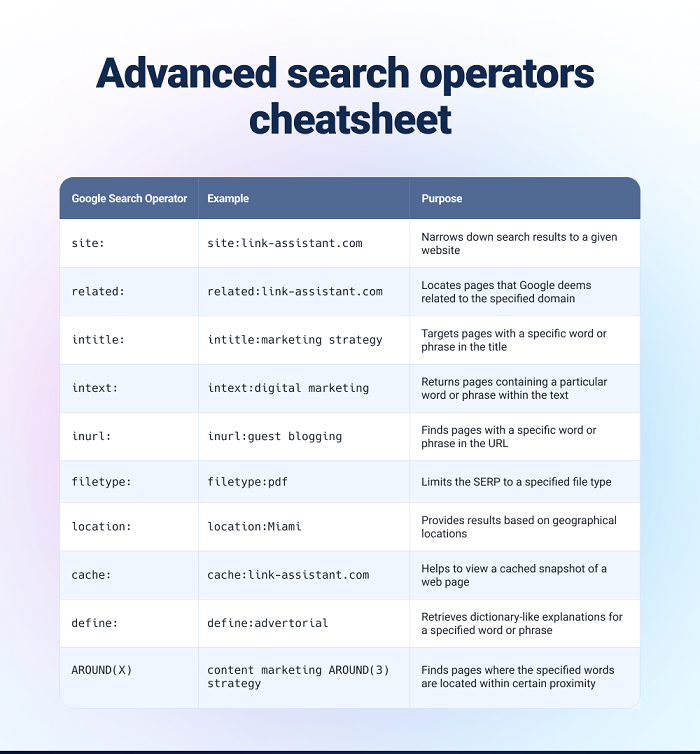
What it is: Special commands you add to your search to get much more precise results.
Most people don’t know these exist. These work directly in Google Images.
The most useful operators:
filetype: Search for a specific file type
- Example: tropical beach filetype:jpg, shows only JPG images
site: Search only within a specific website
- Example: sunset photography site:unsplash.com, only shows Unsplash results
imagesize: Search for a specific image size (in pixels)
- Example: mountain landscape imagesize:1920×1080, finds wallpaper-sized images
“exact phrase” Find images tagged or captioned with an exact phrase
- Example: “golden hour photography”, finds specifically this style
OR: Find images that match one thing or another
- Example: Labrador OR Golden Retriever puppy
-word, Exclude a word from results
- Example: snake -cartoon, finds real snake photos, not illustrated ones
Pro Tip: Combine operators. Example: “product photography” site:behance.net filetype:jpg, finds professional product photography examples on Behance.
Technique 9: Pinterest Visual Search (Lens Feature)

What it is: Pinterest’s built-in search tool that lets you tap on any part of a Pin image and find similar items.
How to do it:
- Open Pinterest (app or website)
- Tap any Pin to open it
- Tap the small camera/search icon on the image
- Draw a box around just the part you want to search
- Pinterest shows you visually similar Pins
Why this is better than Google for certain searches:
- Pinterest specializes in aesthetic, lifestyle, and creative content
- Results are often curated by real people, not just bots
- Perfect for wedding planning, home décor, fashion, recipes, travel inspiration
Example: You’re looking at a living room photo and you love just the coffee table. Draw a box around only the table, and Pinterest shows you hundreds of similar coffee tables, many with purchase links.
Pro Tip: Pinterest Lens works with your phone camera too. Tap the camera icon in the Pinterest search bar and point it at anything in real life. It searches Pinterest for visually similar content.
Technique 10: Multi-Engine Image Search (Search Everywhere at Once)
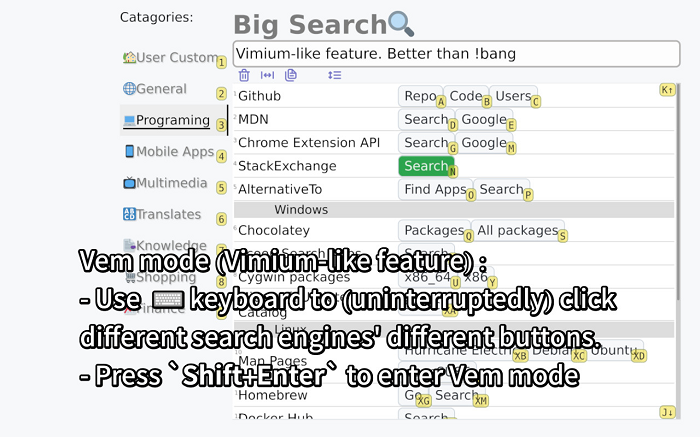
What it is: Instead of searching one engine at a time, you use tools that run your reverse image search across multiple engines simultaneously.
Why this matters: Google might miss results that TinEye finds. Yandex finds images that Google skips. Running a search on all engines at once gives you the most complete picture.
The best multi-engine tools:
| Tool | Engines It Searches | Best For |
| SmallSEOTools Reverse Image Search | Google, Bing, Yandex | General use |
| Prepostseo Image Search | Google, Bing, Yandex, TinEye | Copyright checking |
| Search By Image (Chrome Extension) | 30+ engines at once | Power users |
| Duplichecker | Google + Bing | Quick duplicate check |
How to use the Chrome Extension method:
- Install “Search by Image” extension in Chrome (free)
- Right-click any image on any website
- Click “Search by Image”
- It searches Google, Bing, Yandex, and TinEye simultaneously
- See all results in separate tabs
Pro Tip for photographers and creators: Run multi-engine reverse searches on your own images every month. This is how you find out if someone is using your work without permission, so you can file DMCA takedown requests.
When to Use Each Technique: Quick Reference
| Your Goal | Best Technique |
| Find a photo with words | Technique 1: Keyword Search |
| Find out where an image came from | Technique 2: Reverse Image Search |
| Find images in a similar style | Technique 3: Visual Similarity Search |
| Identify something in real life with your phone | Technique 4: Google Lens |
| Find images matching a brand color | Technique 5: Color & Pattern Search |
| Identify a face or object in a photo | Technique 6: Facial/Object Recognition |
| Find and compare products to buy | Technique 7: Visual Product Search |
| Get very specific image results | Technique 8: Search Operators |
| Find fashion, décor, or creative ideas | Technique 9: Pinterest Lens |
| Do a thorough copyright check | Technique 10: Multi-Engine Search |
5 Common Mistakes to Avoid
Avoid these common mistakes to get more accurate and useful results from image search tools:
- Only using Google: Yandex and TinEye find results Google misses. For thorough research, always check more than one engine.
- Searching with low-quality images: If your image is blurry, small, or heavily compressed, results will be poor. Use the highest quality version of your image for the best results.
- Forgetting to crop: If your image has multiple objects, search engines get confused. Crop tightly around just the thing you want to find before searching.
- Ignoring mobile tools: Google Lens on your phone camera is one of the most powerful image search tools available, and most people never use it. Download the Google app and start exploring.
- Not checking image usage rights Before you use an image you found, always check if it’s copyright-free. Use Google Images >> Tools >> Usage Rights to filter for images you’re legally allowed to use.
How Image Search Is Changing in 2026
Image search is getting smarter every year. Here’s what’s new:
- AI-Powered Understanding: Modern tools don’t just match pixels anymore. They understand context. Google can now tell the difference between a photo taken at sunrise vs sunset, or identify a specific model year of a car.
- Multimodal Search: You can now search using a mix of an image AND text. For example, upload a photo of a blue sofa and type “but in green” Google understands both inputs together.
- Shopping Integration: Google Lens now connects directly to Google Shopping, so visual search results include real-time prices from multiple stores.
- AI Fake Detection: New tools are emerging to identify AI-generated images and deepfakes using reverse image search combined with metadata analysis.
- Voice + Image: On mobile, you can now combine voice search with image search, hold up your camera, say what you’re looking for, and get results.
Image Search for Different Types of Users
Different users can take advantage of image search tools in unique ways depending on their goals:
Students and Researchers
Use reverse image search to verify if a photo used in an article is real or has been taken out of context. Yandex and TinEye are your best tools for fact-checking.
Bloggers and Content Creators
Always use Google Images’ Usage Rights filter to find copyright-free images. Or use Unsplash, Pexels, or Pixabay, then do a reverse search to confirm no restrictions.
eCommerce Sellers
Use visual product search to see how competitors are presenting similar products. Also reverse search your own product images to make sure nobody is reselling them without permission.
Designers and Artists
Use color-based search and Pinterest Lens for inspiration. Use multi-engine reverse search to protect your original work from theft.
Journalists and Fact-Checkers
Yandex + TinEye + Google reverse image search is the fact-checker’s toolkit. Always run photos through all three before publishing.
The Best Free Image Search Tools in 2026
| Tool | Free? | Best Feature |
| Google Lens | Yes | Camera search, AI identification |
| Google Images | Yes | Largest database, usage rights filter |
| TinEye | Yes | Tracks image history, finds exact duplicates |
| Yandex Images | Yes | Best facial recognition |
| Pinterest Lens | Yes | Best for fashion and decor |
| Bing Visual Search | Yes | Good product matching |
| Shutterstock Reverse | Yes | Best for commercial stock images |
| Search by Image (Extension) | Yes | Runs 30+ engines at once |
How to Optimize Your Own Images for Search (Bonus SEO Section)
If you run a website, here’s how to make sure YOUR images show up in search results.
Write descriptive alt text: Every image on your site should have alt text that describes what’s in the image. Example: alt=”golden retriever puppy sitting on green grass in sunlight” is far better than alt=”dog”.
Use descriptive file names: Rename your image files before uploading. golden-retriever-puppy.jpg is much better than IMG_2047.jpg.
Compress your images: Faster loading images rank better. Use tools like TinyPNG or Squoosh to reduce file size without losing quality.
Use structured data: If you have a product or recipe website, add Schema markup to your images so Google can show them as rich results.
Create an image sitemap: Tell Google about all the images on your site by including them in your XML sitemap.
Use WebP format: Google prefers WebP images. They load faster and rank better than JPEGs in many cases.
Quick Comparison of Image Search Techniques
Here is a quick comparison of the most useful image search techniques based on different user needs.
| Need | Best Technique |
|---|---|
| Find any image using text | Keyword Search |
| Identify objects or products | Google Lens |
| Check image source | Reverse Image Search |
| Find similar style images | Visual Similarity |
| Shopping & price comparison | Visual Product Search |
| Verify image authenticity | Multi-Engine Search |
Frequently Asked Questions
Q.1: What is the best reverse image search tool?
Ans: For most uses, Google Lens is the best because it has the largest database and uses AI to understand images. For finding exact duplicates and tracking where images appear over time, TinEye is the best. For people and faces, Yandex is often more accurate than Google.
Q.2: Is reverse image search free?
Ans: Yes. Google Lens, TinEye (basic), Yandex, and Bing Visual Search are all completely free to use.
Q.3: Can I do a reverse image search on my phone?
Ans: Short answer is, yes. Open the Chrome browser on your phone, hold your finger on any image, and tap “Search image with Google.” Or open the Google app and tap the Lens icon to search with your camera.
Q.4: How do I find out if someone stole my photo?
Ans: Upload your photo to TinEye and Google reverse image search. TinEye tracks where images appear online over time and can show you every website using your image. You can then file a DMCA takedown request.
Q.5: What is Google Lens?
Ans: Google Lens is an AI-powered camera search tool. You point your phone camera at any real-world object, a plant, a menu, a product, text, a painting, and Google identifies it and gives you information. It’s free and built into the Google app on both Android and iPhone.
Q.6: What are search operators in image search?
Ans: Search operators are special commands you add to your search to get more specific results. For example, adding filetype:png to your search finds only PNG images. Adding site:behance.net finds results only from Behance. See Technique 8 in this guide for a full list.
Conclusion
Most people still use image search in a basic way by typing keywords and hoping for the best. But as you’ve learned, there are 10 powerful image search techniques that each solve different problems more efficiently.
From Google Lens and reverse image search to advanced operators, Pinterest Lens, and multi-engine search, these methods can completely change how you find, verify, and use images online.
Start by trying just one technique today, and you’ll quickly see how much faster and smarter image search can become.

